
Help Center for G Map Extractor
Follow these guides to sign up, manage credits, use each tool, and download clean Google Maps data without confusion.
Getting started with G Map Extractor
Sign up for a new account
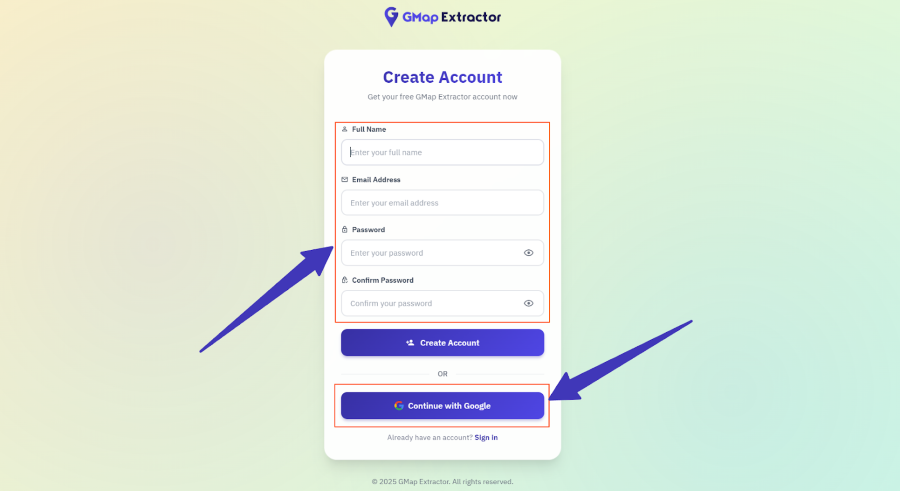
You can create a G Map Extractor account through the app portal. Use your personal email and a strong password or sign up with Gmail if you prefer.
- Go to the registration page: https://app.gmapextractor.io/register
- Fill in your full name, email address, and password in the form.
- Or click the option to sign up with Gmail to connect your Google account.
- Submit the form to create your account.
Verify your email address
After you submit the registration form, G Map Extractor sends a confirmation email to verify that your address is valid and belongs to you.
- Check your inbox for the verification email.
- If you do not see it, check your spam or junk folder.
- Open the email and click the verification link to activate your account.
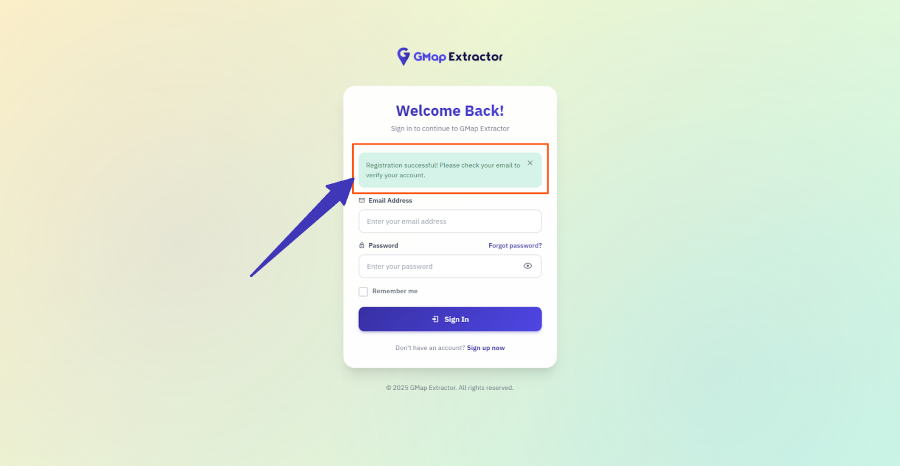
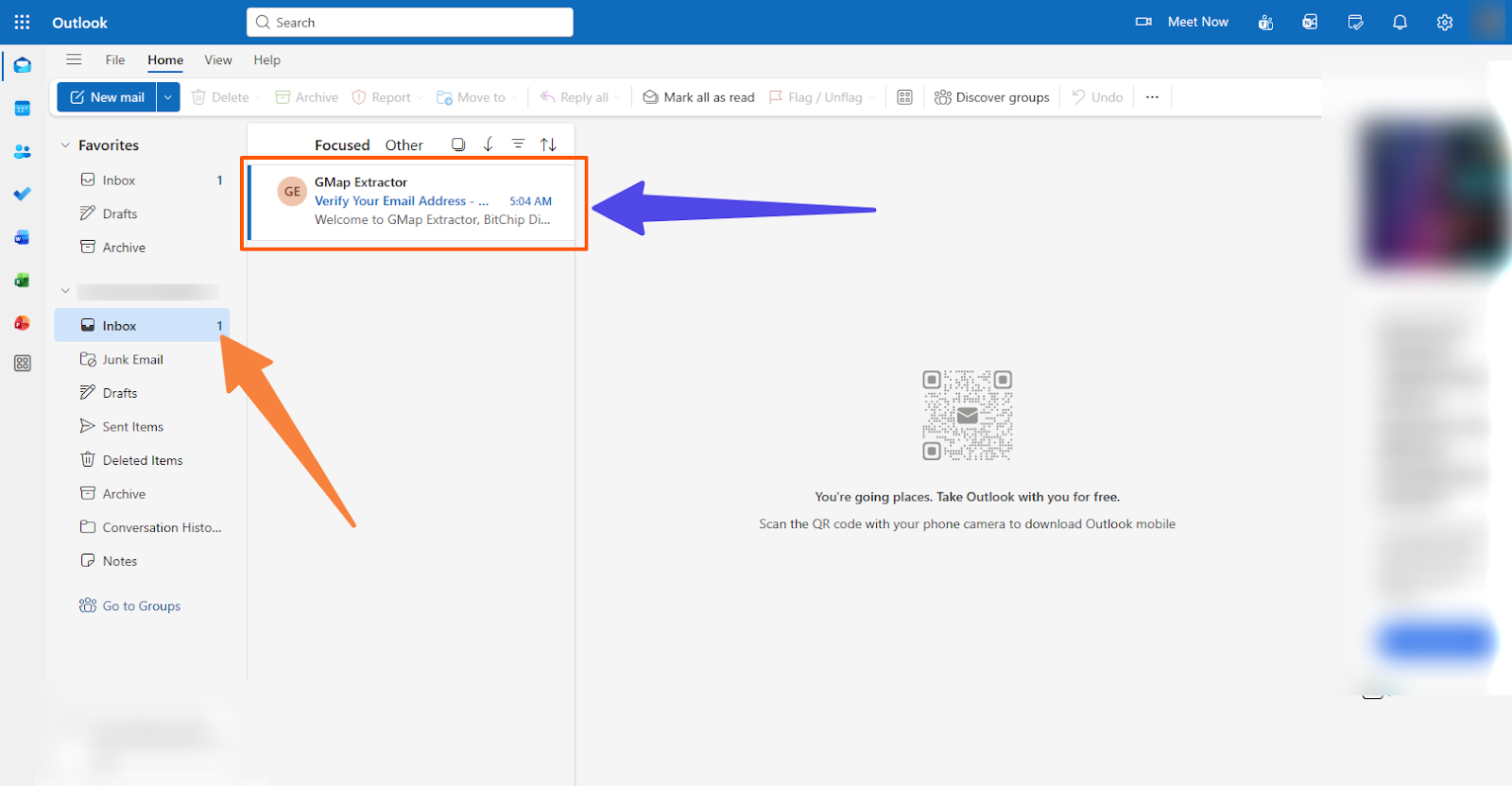
If you still cannot find the message after a few minutes, resend the verification from the app or contact support from the main website.
Log in to the app
Once your email is verified, you can log in and start using the tools.
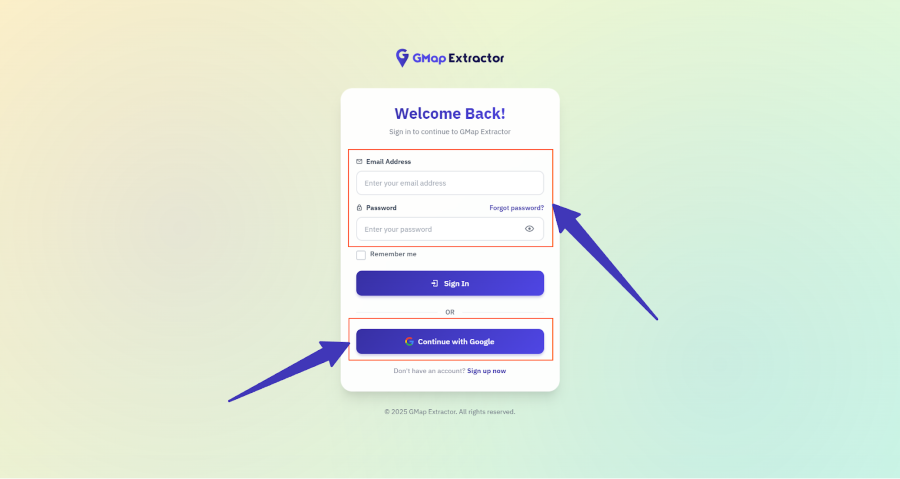
- Open the login page: https://app.gmapextractor.io/login
- Enter the email and password you used during registration.
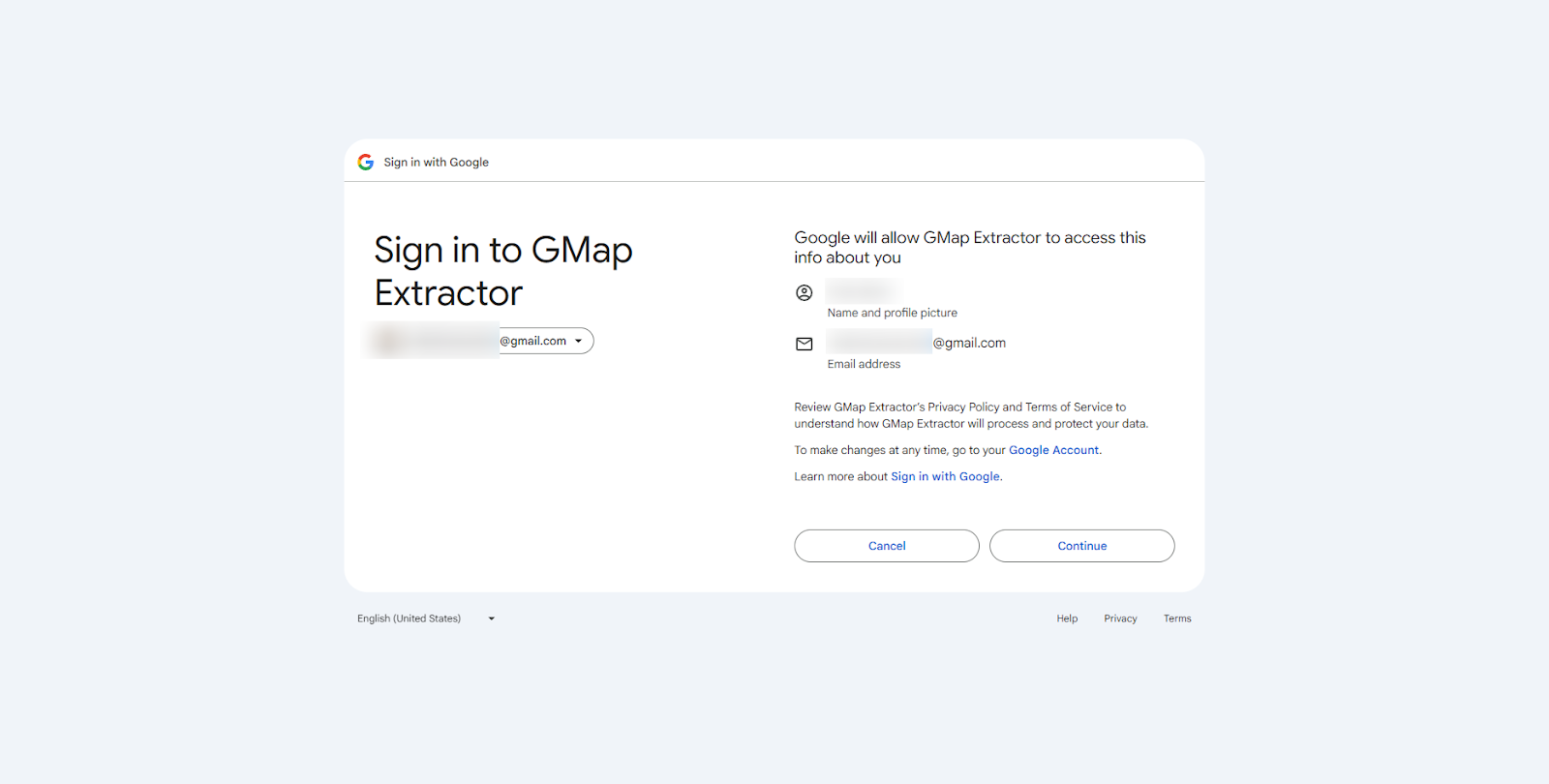
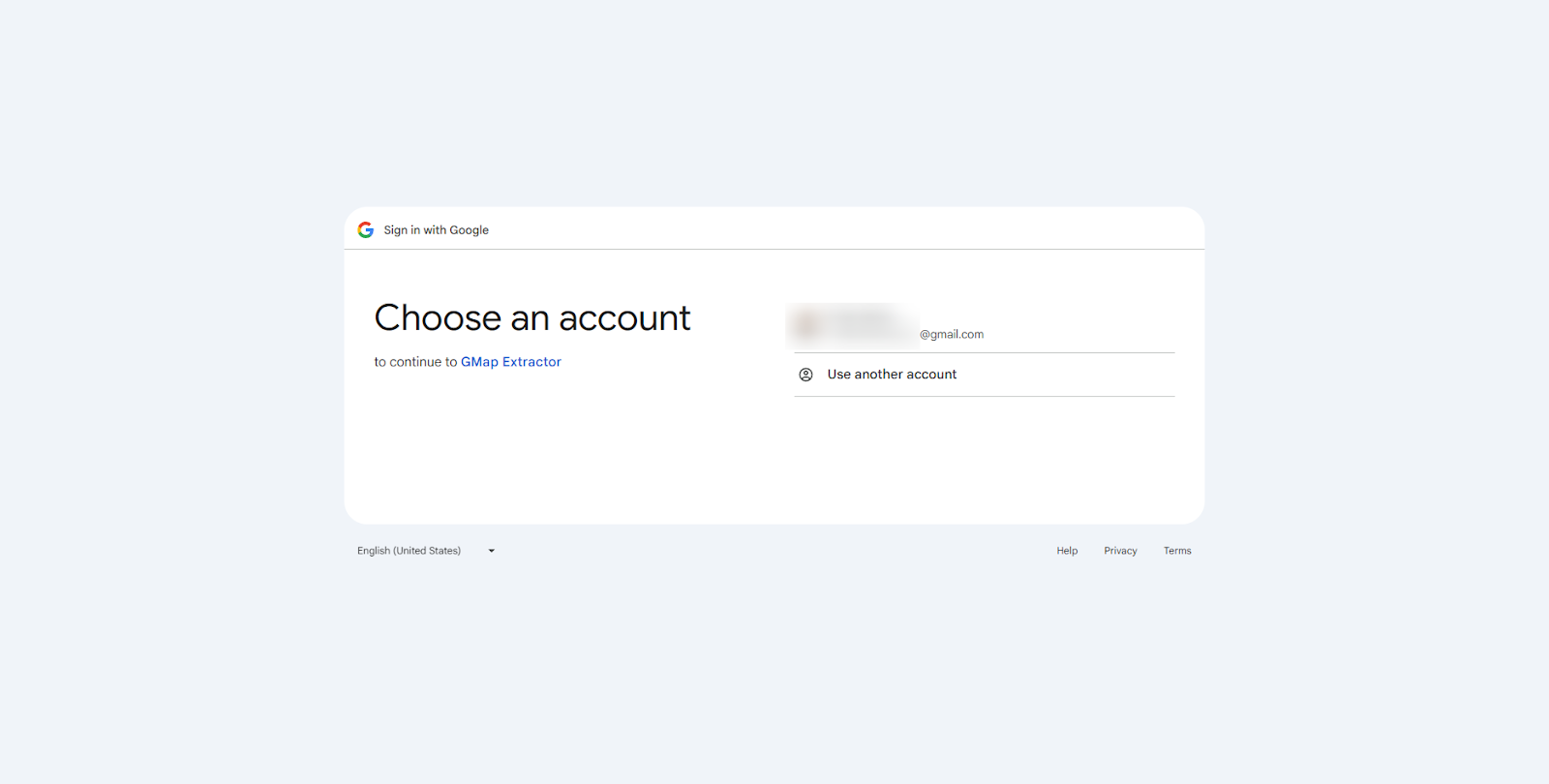
- Or click the Gmail login option and accept the requested permissions so the app can confirm your identity.
Dashboard overview
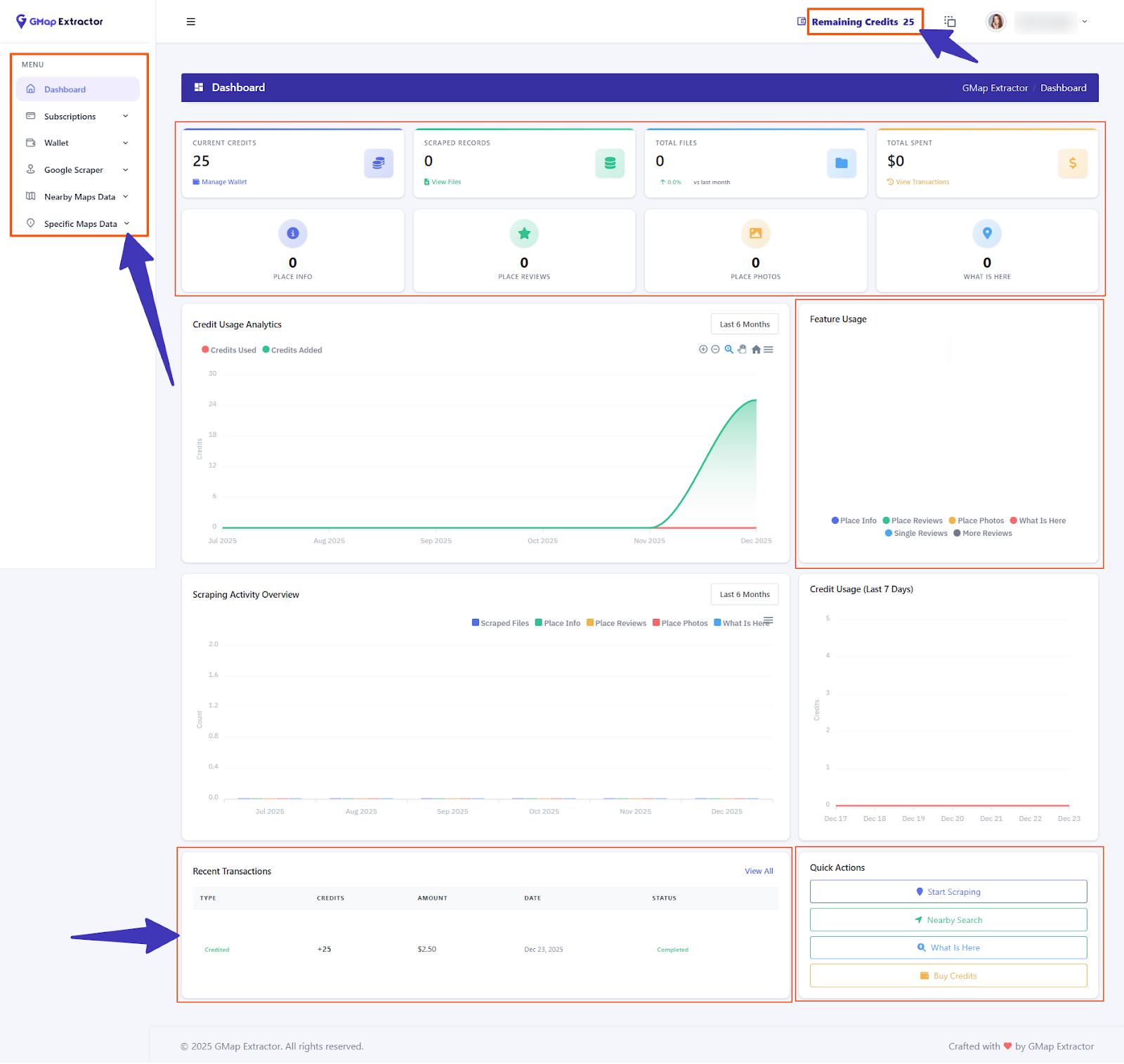
After login you land on the dashboard. This is your starting point for checking credits, opening tools, and viewing your scraping history.
- Quick view of your active subscription or credits.
- Access to Google MAP Scraping, Nearby, Specific Place tools and more.
- Links to wallet, subscription, and scraped files lists.
Subscriptions, wallet, and credits
View subscription packages
The subscription page shows all available packages so you can choose the one that matches your scraping needs.
- From the dashboard, navigate to the Subscription section in the menu.
- Review the packages and limits shown on the subscription page.
- Select the package that fits your volume and usage pattern.
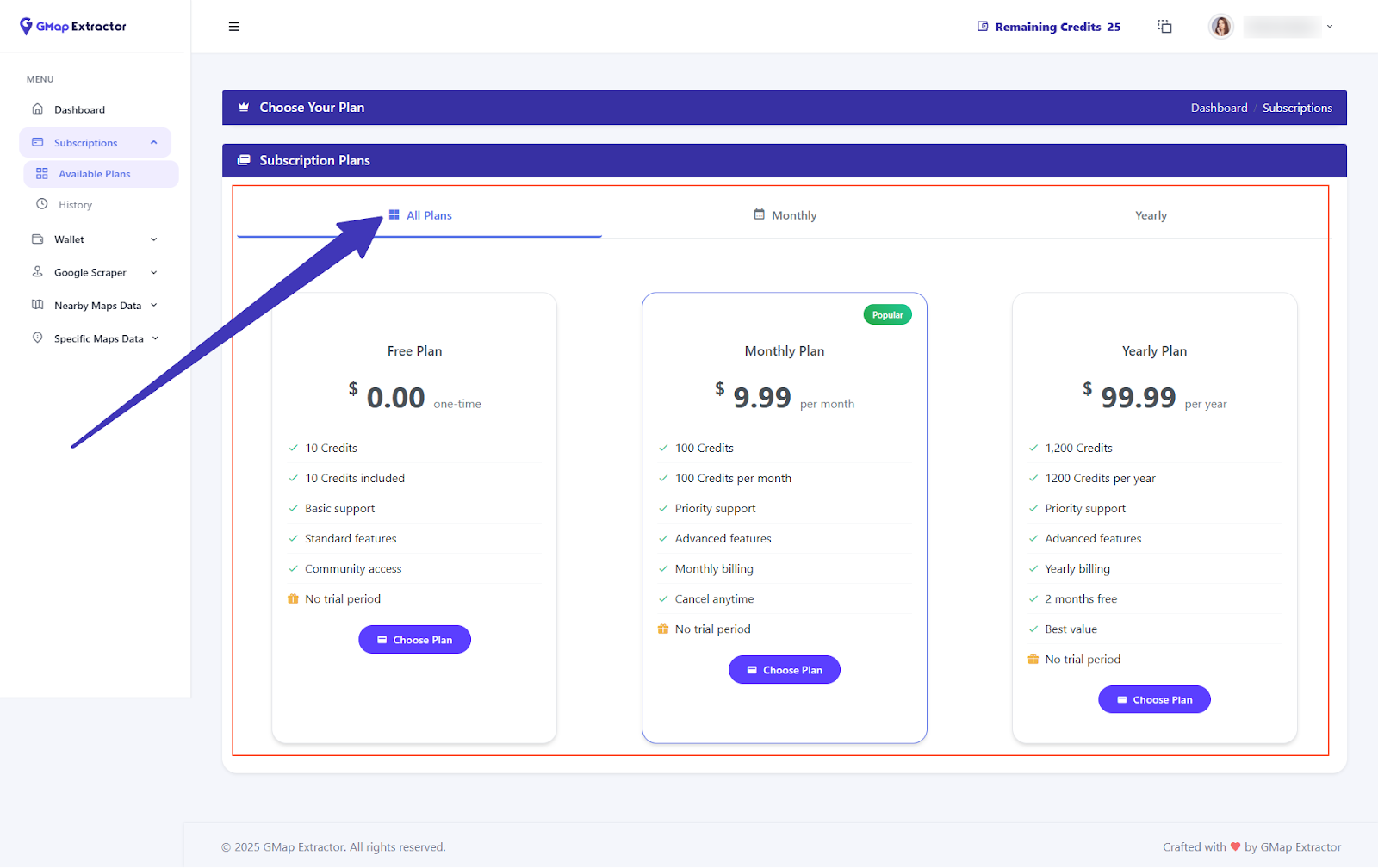
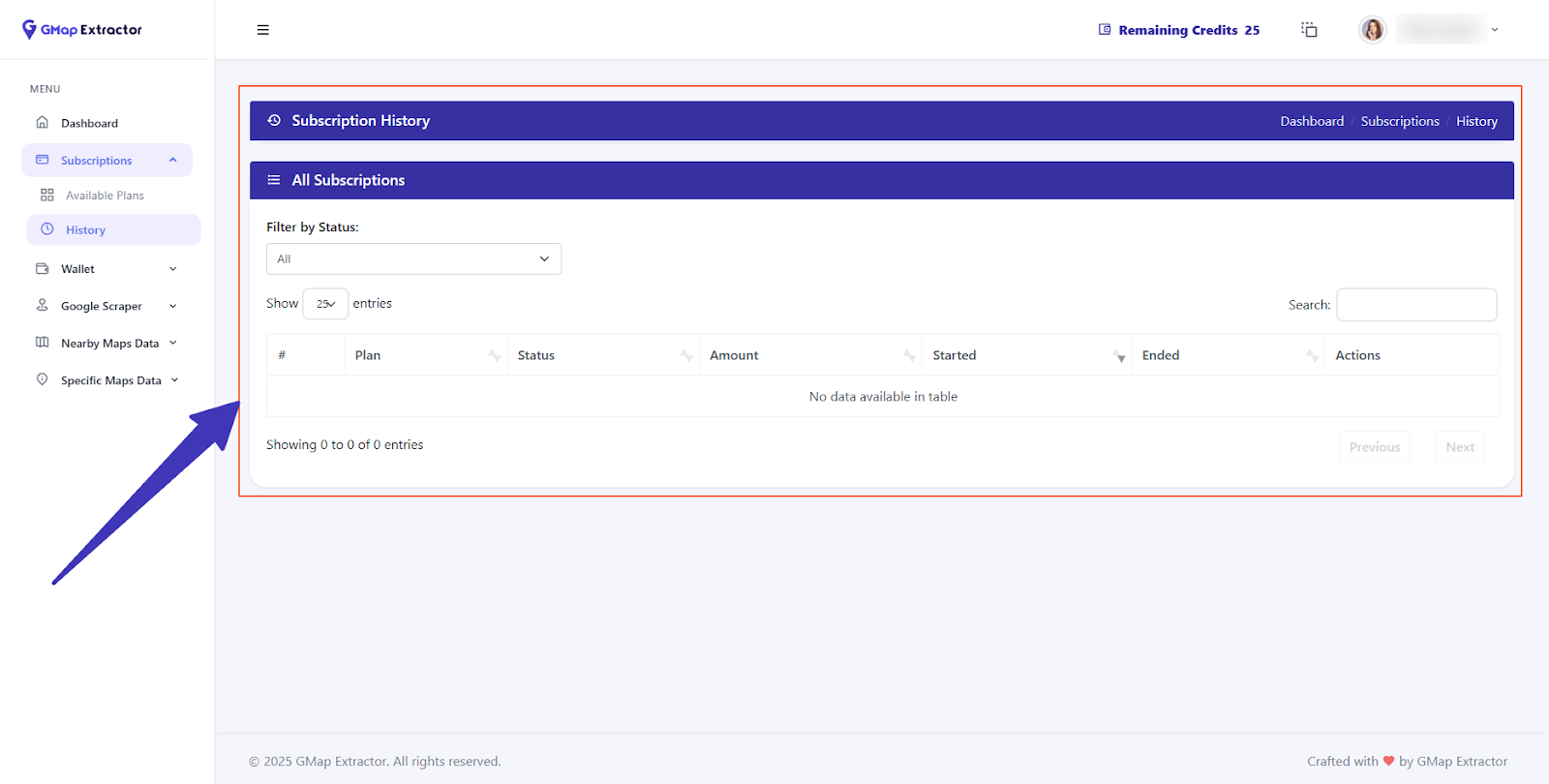
If a package includes credits, those credits appear in your wallet after purchase and are used when you run scraping jobs.
Wallet and available credits
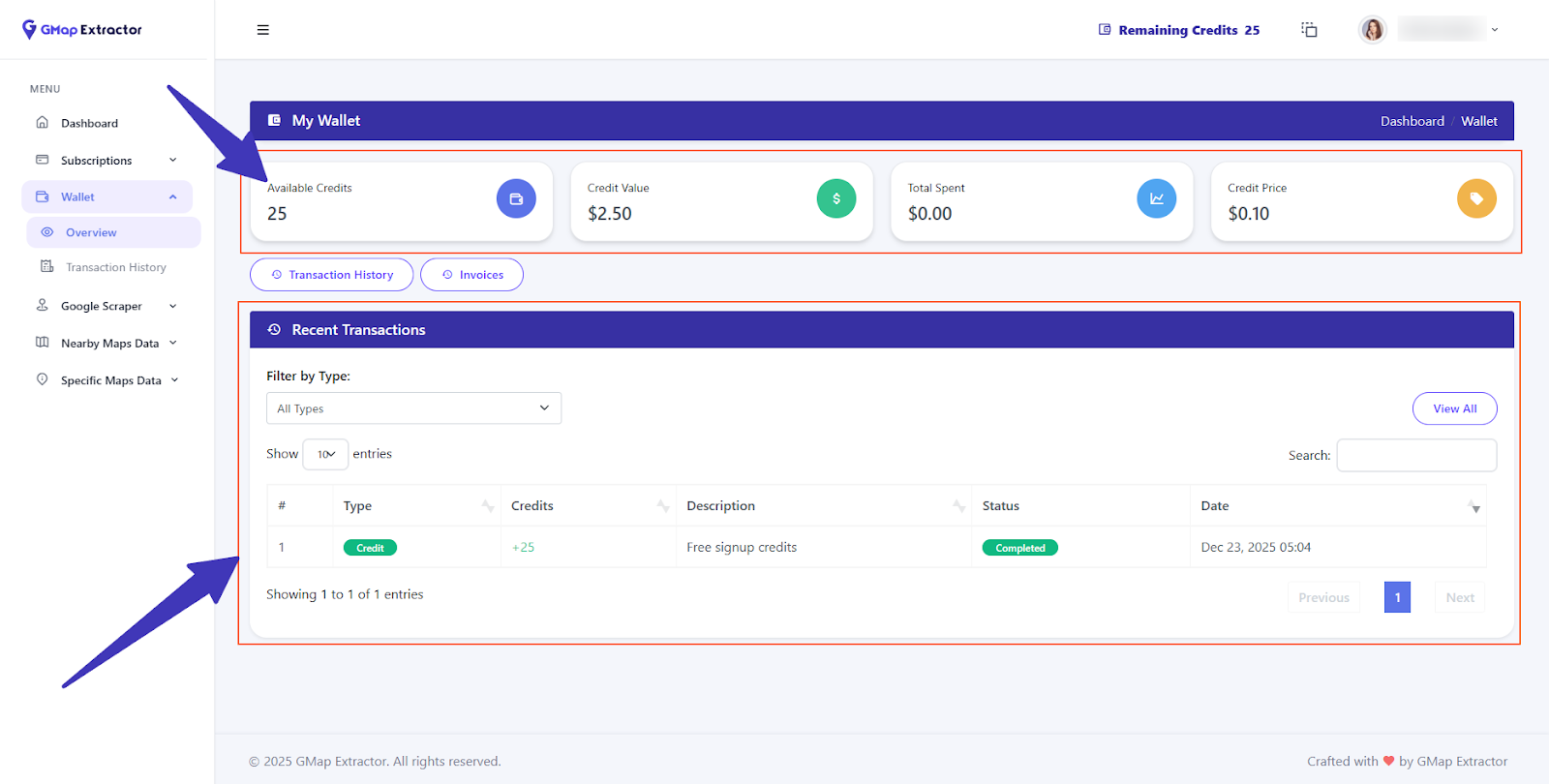
The wallet section gives you a clear view of how many credits you currently have across your packages. These credits are consumed when you run Google Map Scraping, Nearby, or Specific Place tools.
- Open the Wallet section from the app menu.
- See total credits left and how they are attached to your packages.
- Monitor usage before starting new scraping jobs.
Transaction history for purchased packages
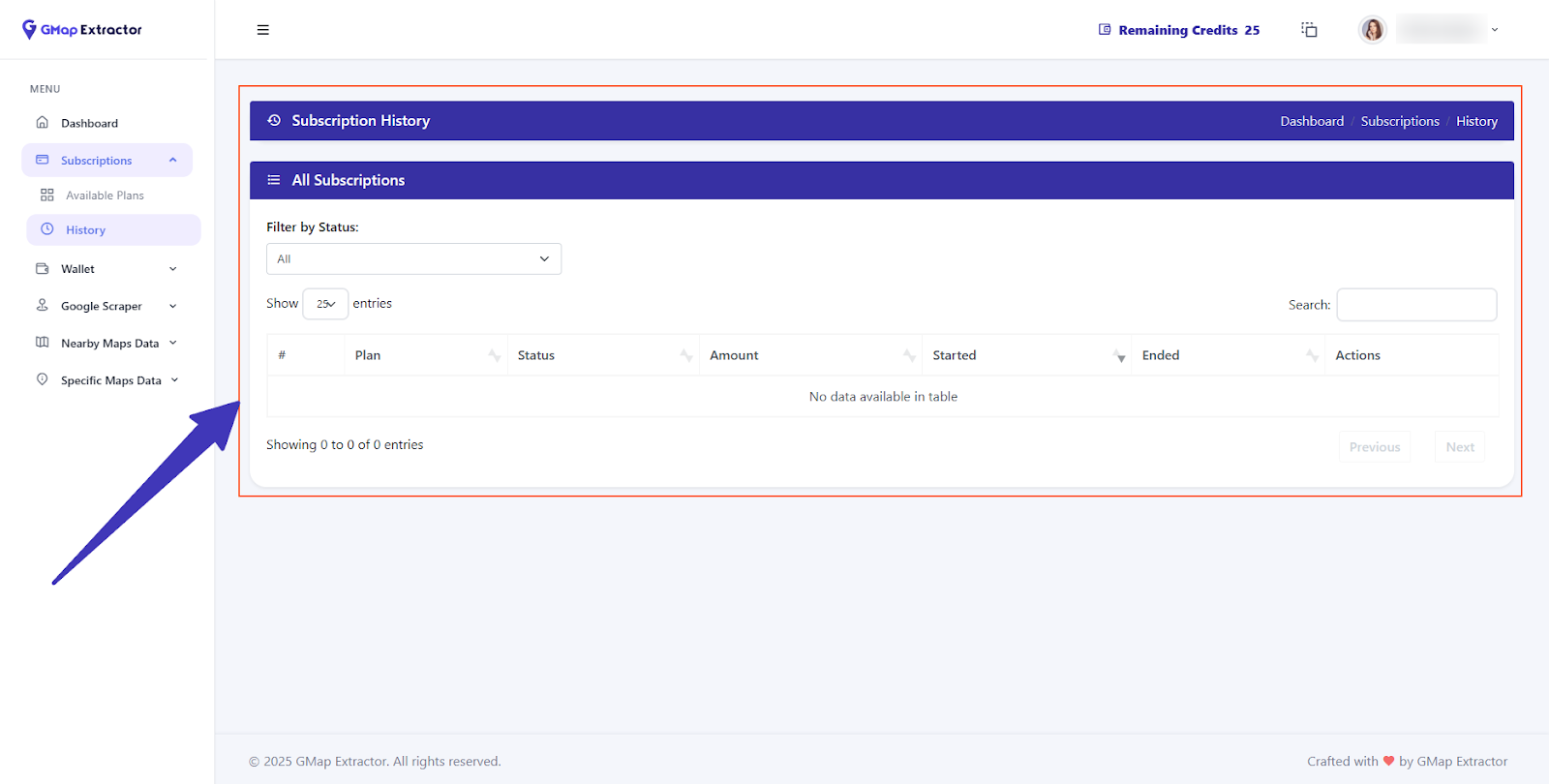
You can also review every purchase for transparency and record keeping. Transaction history shows the packages you bought and how credits were added to your account.
- Go to the Transaction or History area in your wallet or billing section.
- Check the list of purchased packages, dates, and amounts.
- Use this list for your own records or invoicing.
How to use each G Map Extractor tool
Google MAP Scraping
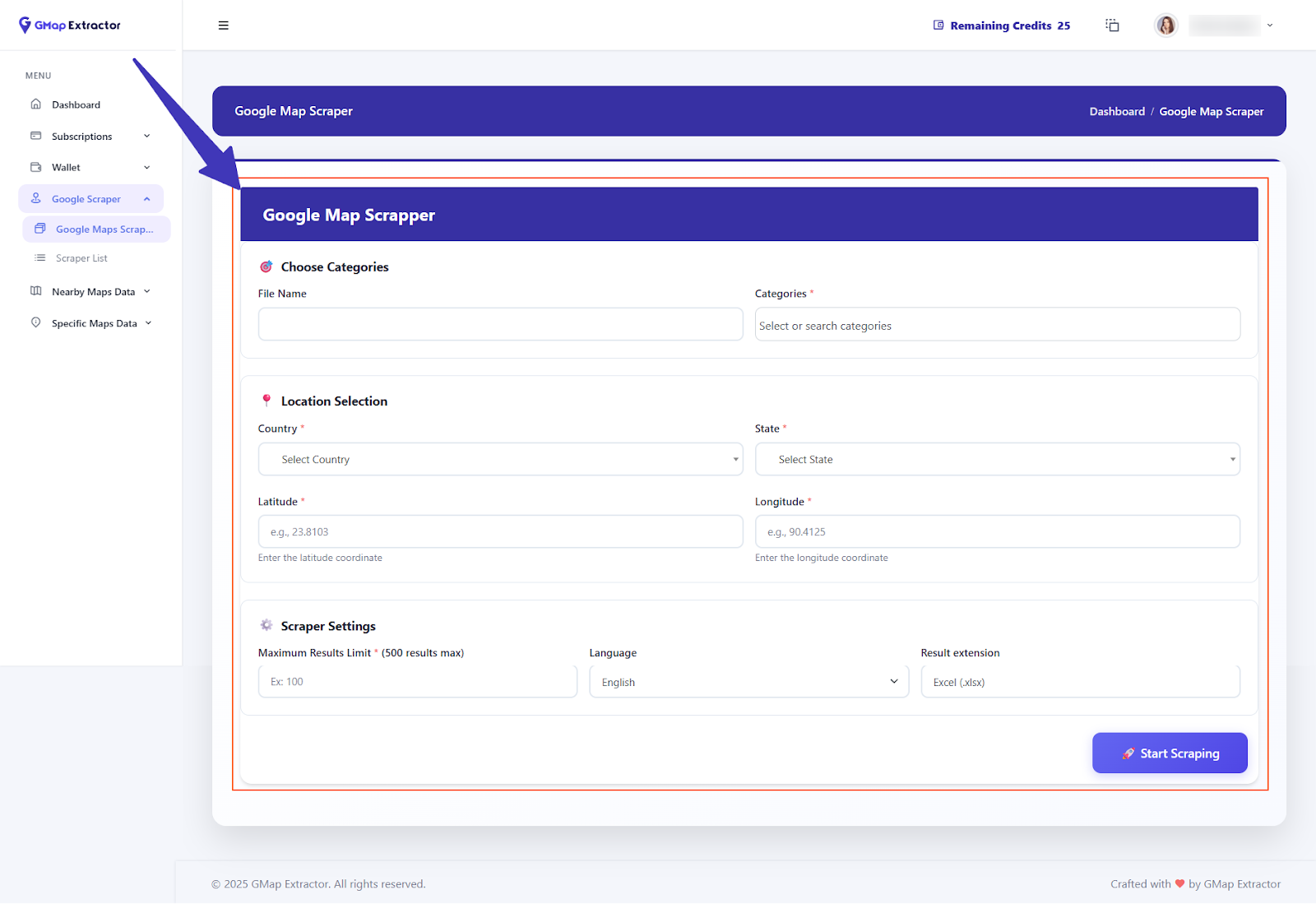
Google MAP Scraping is your main extractor for pulling business data from a Google Maps search. To get a successful result you must complete all required fields in the form.
- Open the Google MAP Scraping tool from your dashboard.
- Fill in every required field in the form such as keyword, location, and other options.
- Submit the form to start scraping.
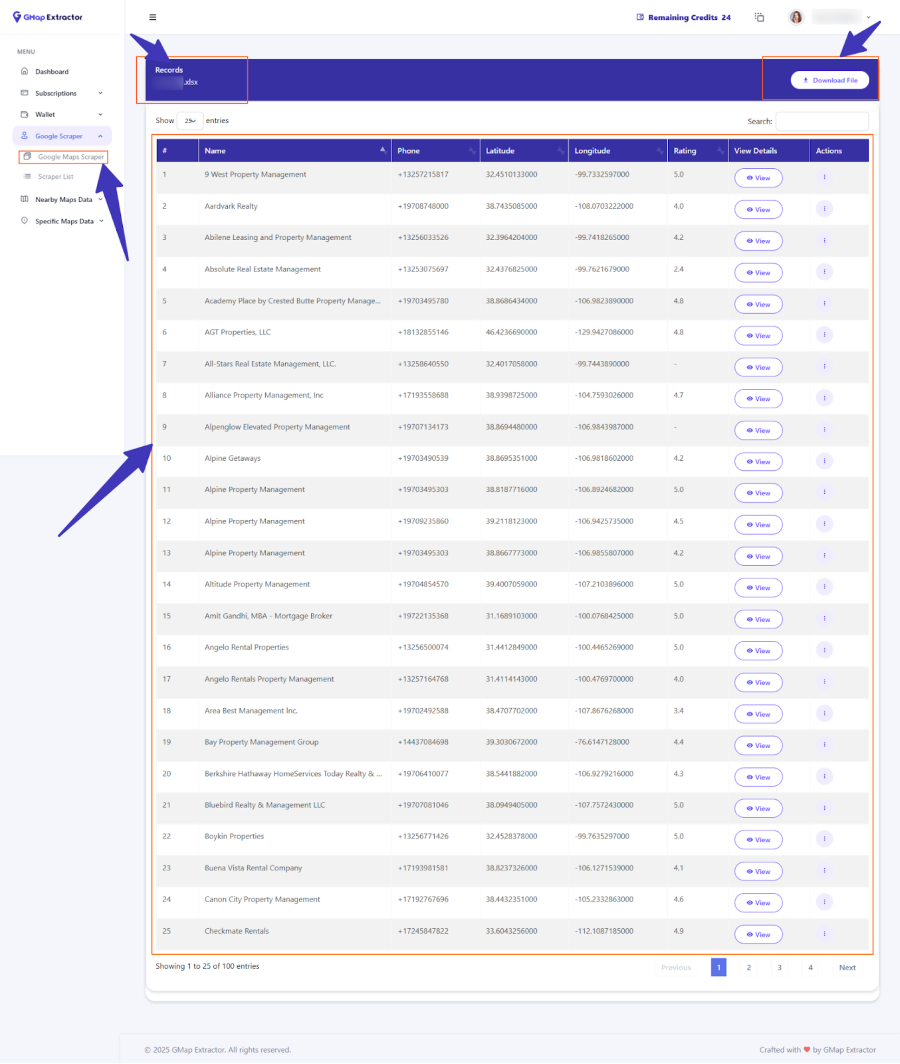
After you submit, the tool processes your input and returns a result table with matching businesses.
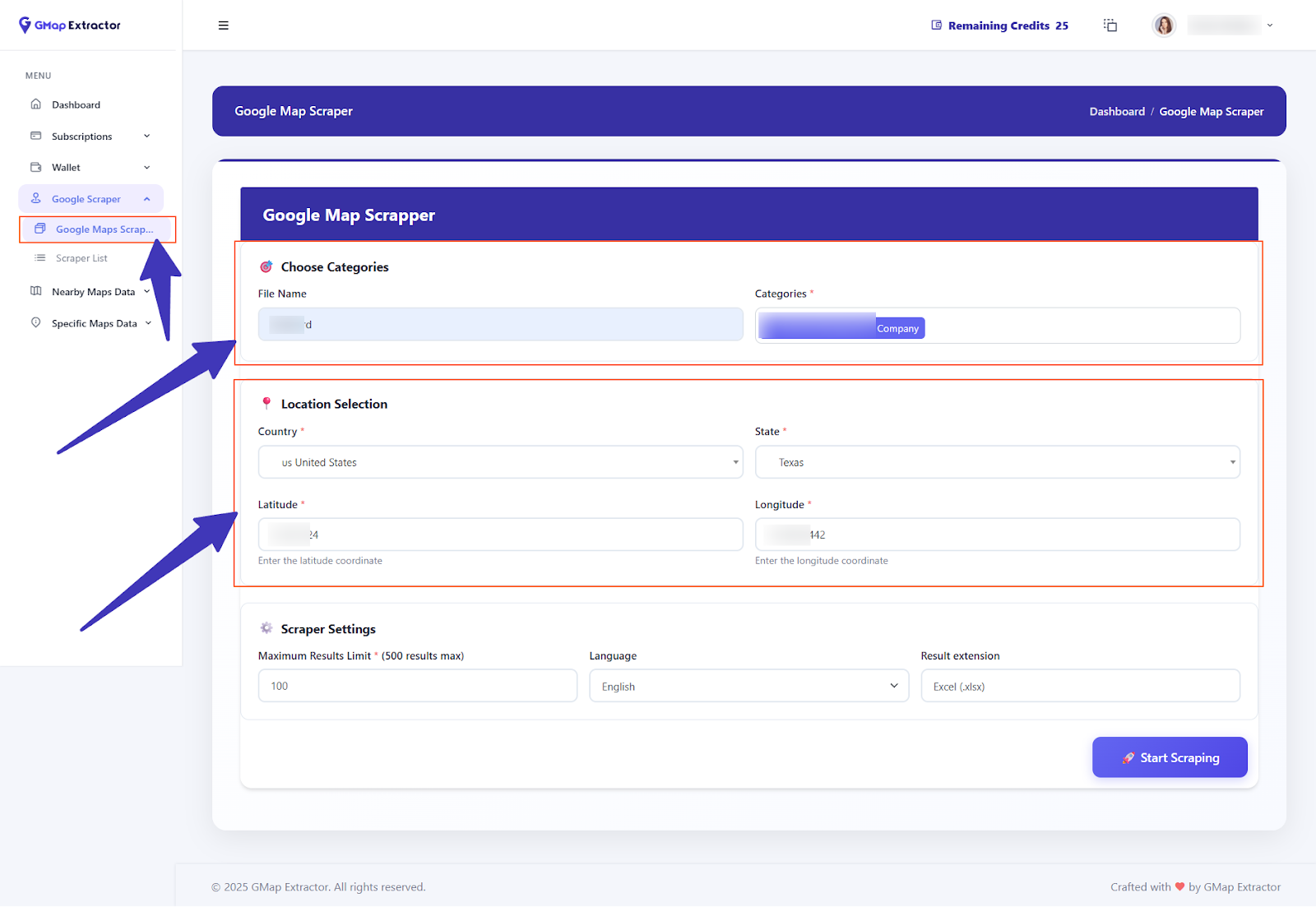
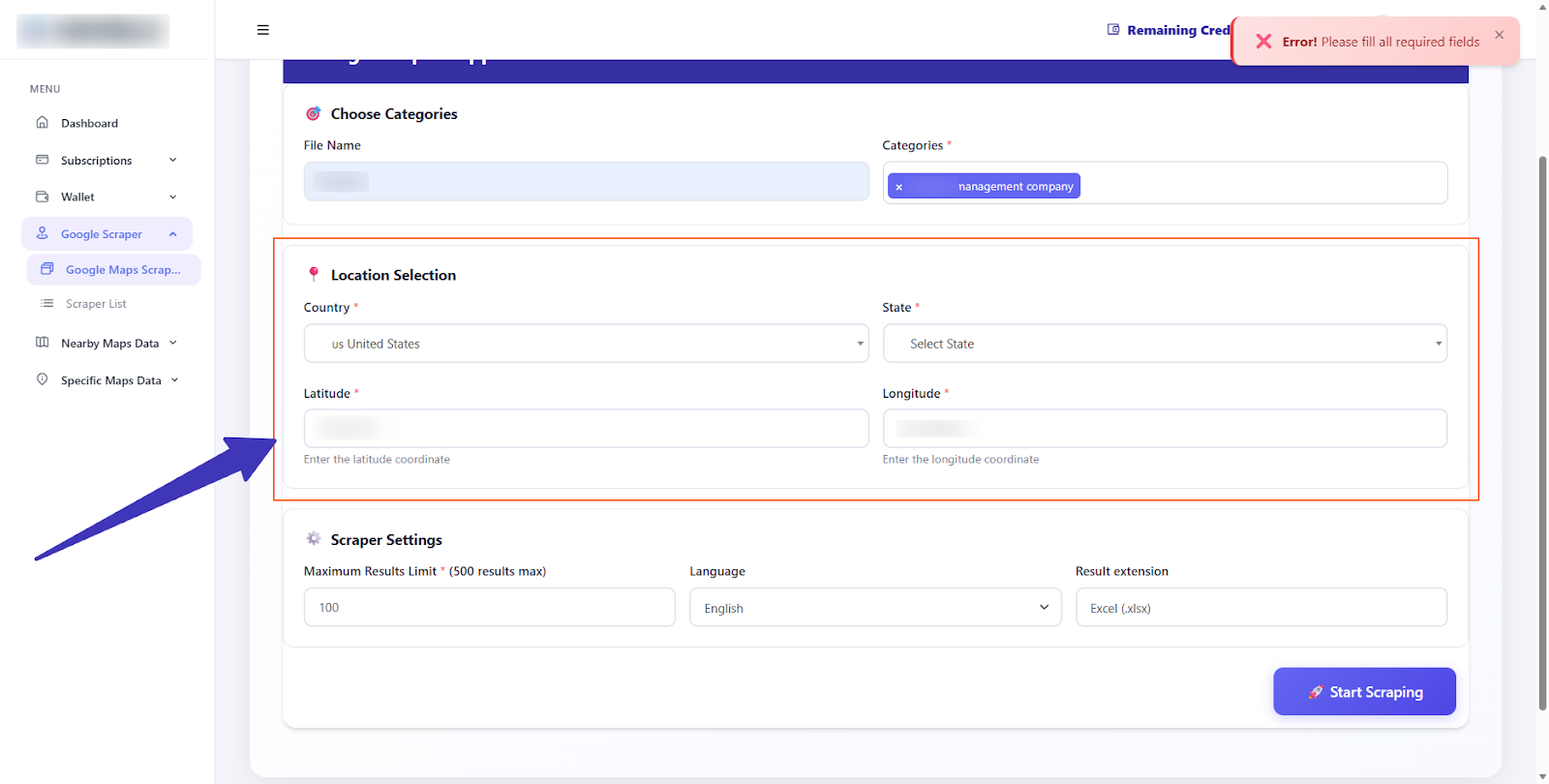
If you miss any required field, the system shows an error instead of starting the job. This helps you fix the input before using credits.
Once all data is filled correctly and processed, you see the final result with all the extracted information for that search.
Google Nearby Map Scraper
Google Nearby Map Scraper focuses on businesses around a specific location. It is useful for hyperlocal research, store surroundings, or checking nearby competitors.
Fill in the form with the required fields, such as coordinates, address, or search radius, then run the scraper.
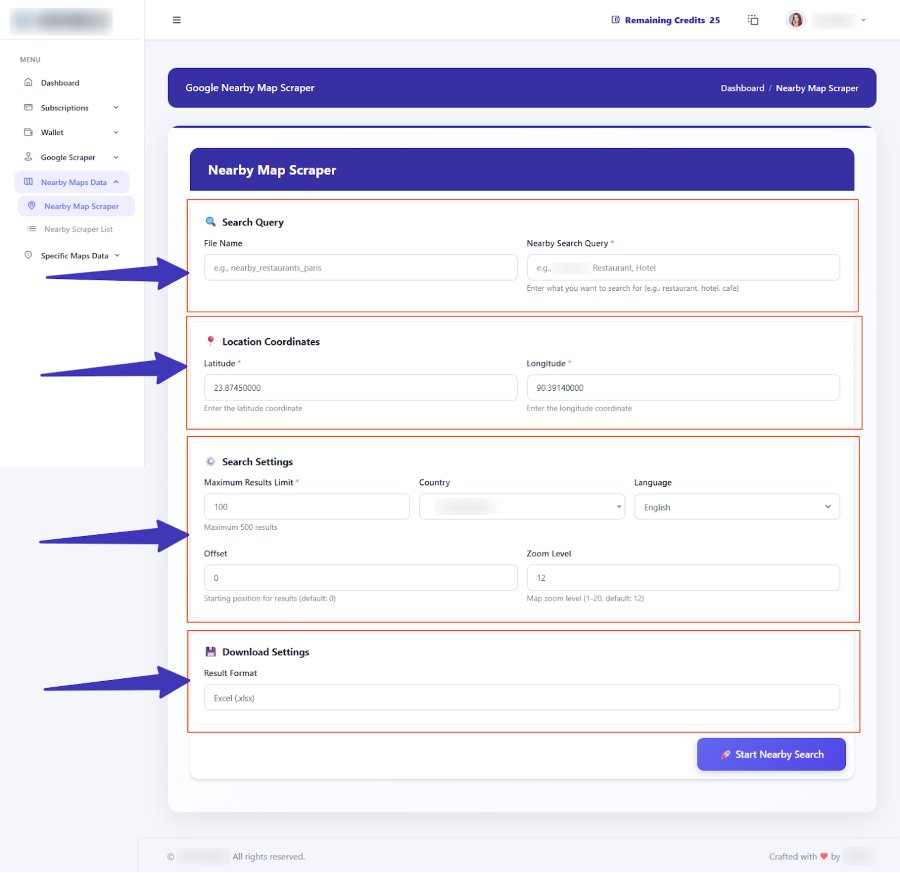
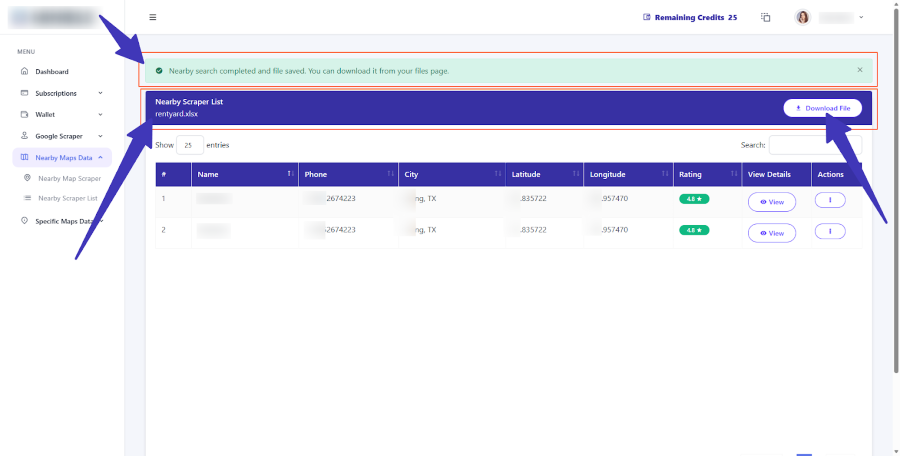
After entering all fields and starting the job, you get a similar result list. From this result you can easily download the file in XLSX format.
Specific Place Information
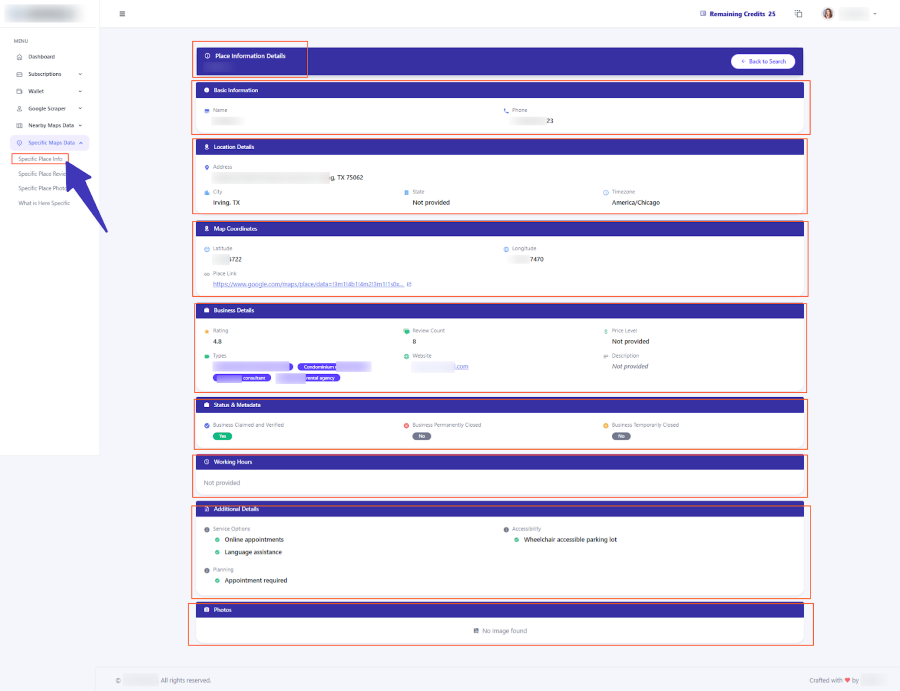
Specific Place Information is designed for deeper details about a single business or place. You enter the required inputs for that place and the tool returns a structured summary and full result.
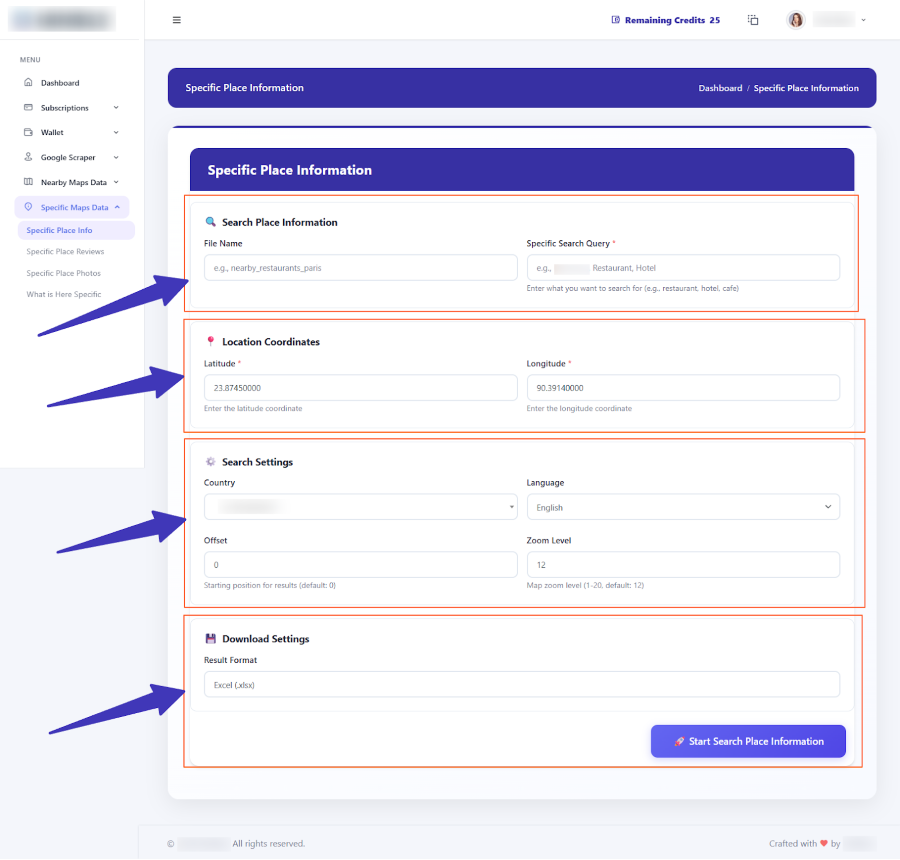
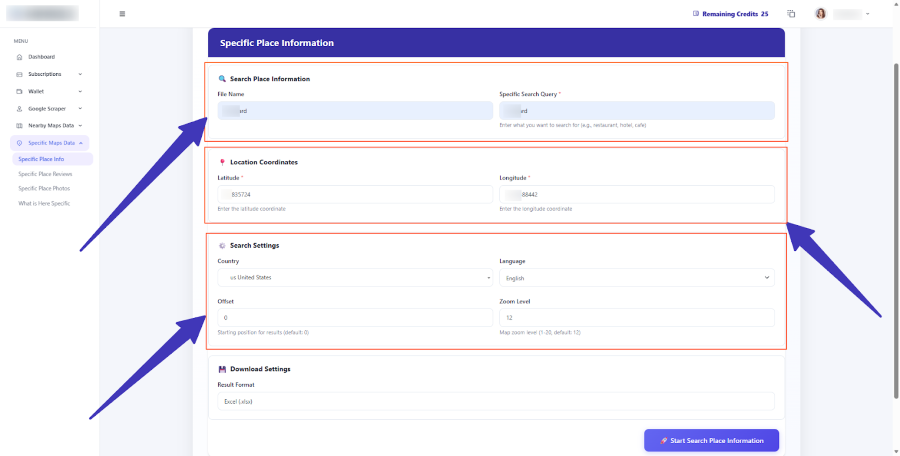
After you put in all the info, you first see a summary of the data that will be returned.
When processing finishes and all data is complete, the final result appears with the detailed information for that place.
Specific Place Review
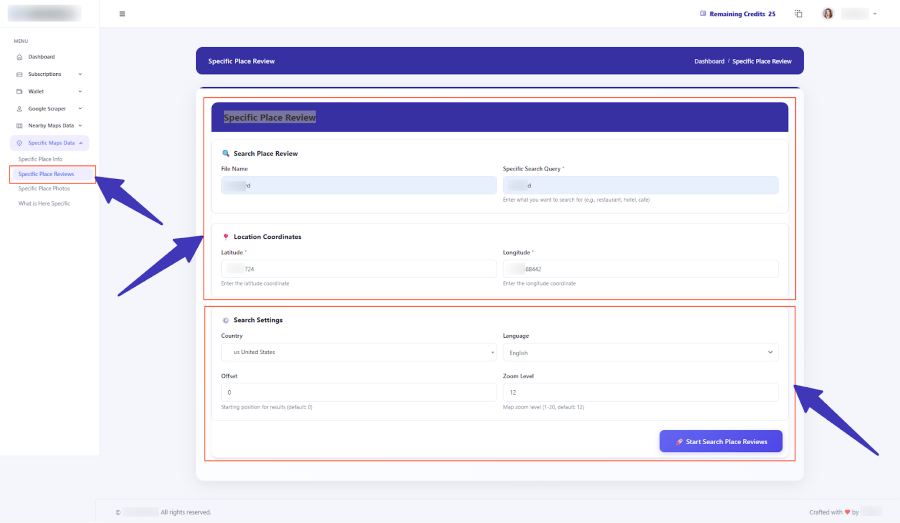
Specific Place Review collects reviews for a particular business. You must fill out all the required fields in this section to see review results.
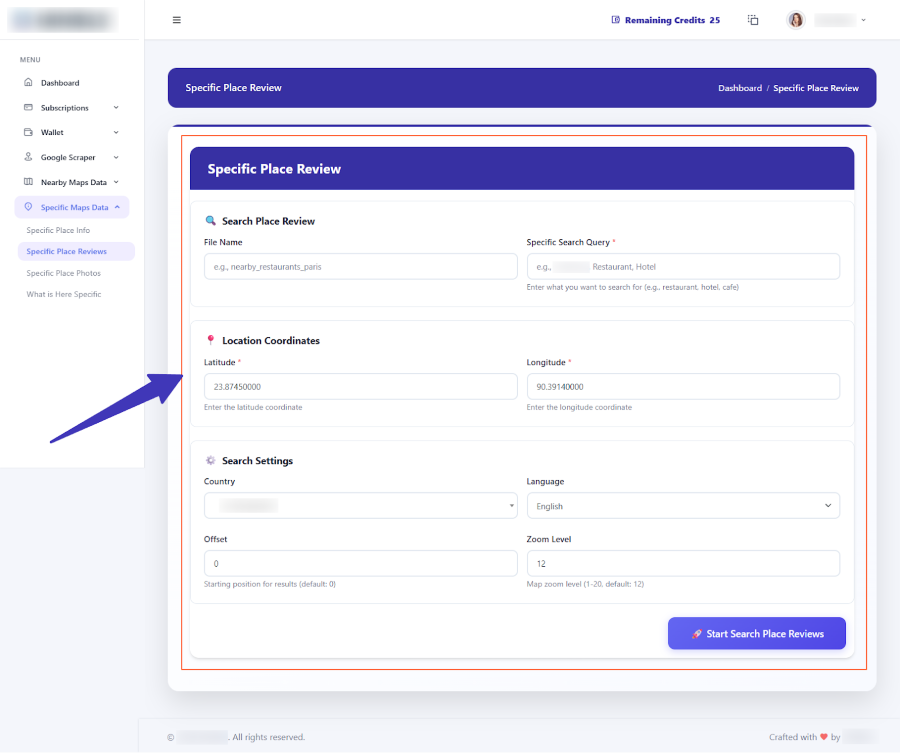
After you provide the info, you first see a summary of the review data that will be collected.
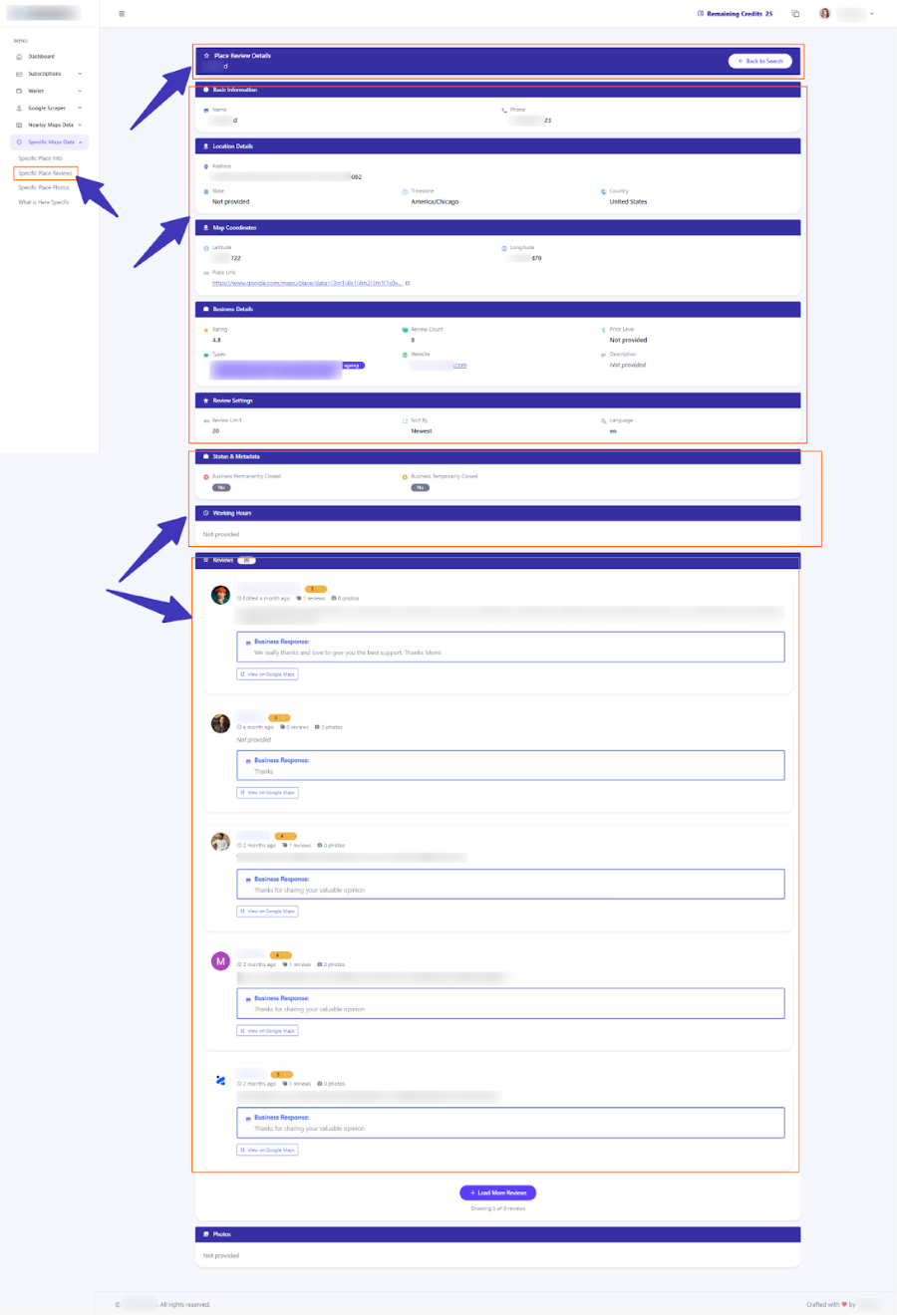
When you fill out all data and the job finishes, the final result view shows the full review information for that place.
Specific Place Photos
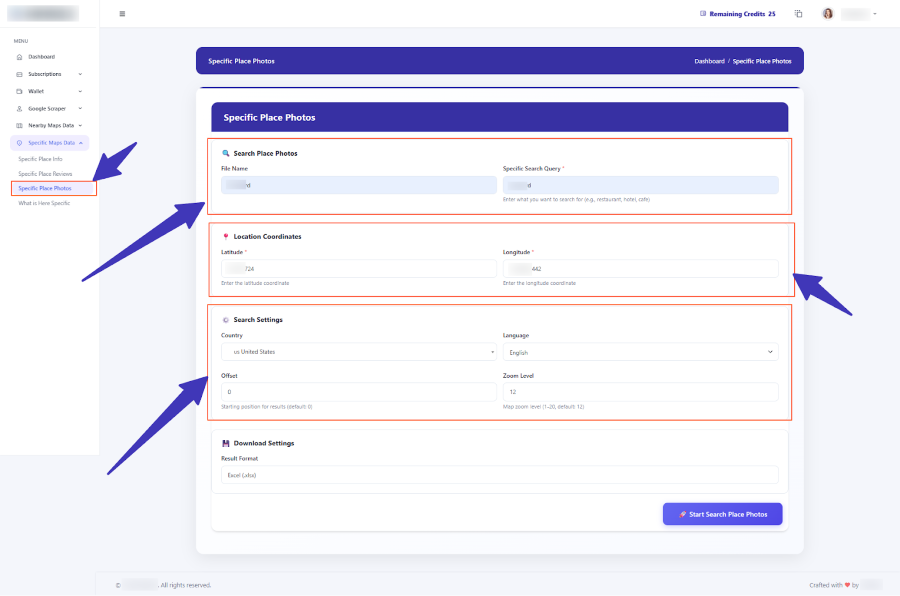
Specific Place Photos retrieves photos related to a business. It is useful if you want to visually review how a place looks or prepare assets for reports and presentations.
Fill all fields in the form so the tool can identify the correct place.
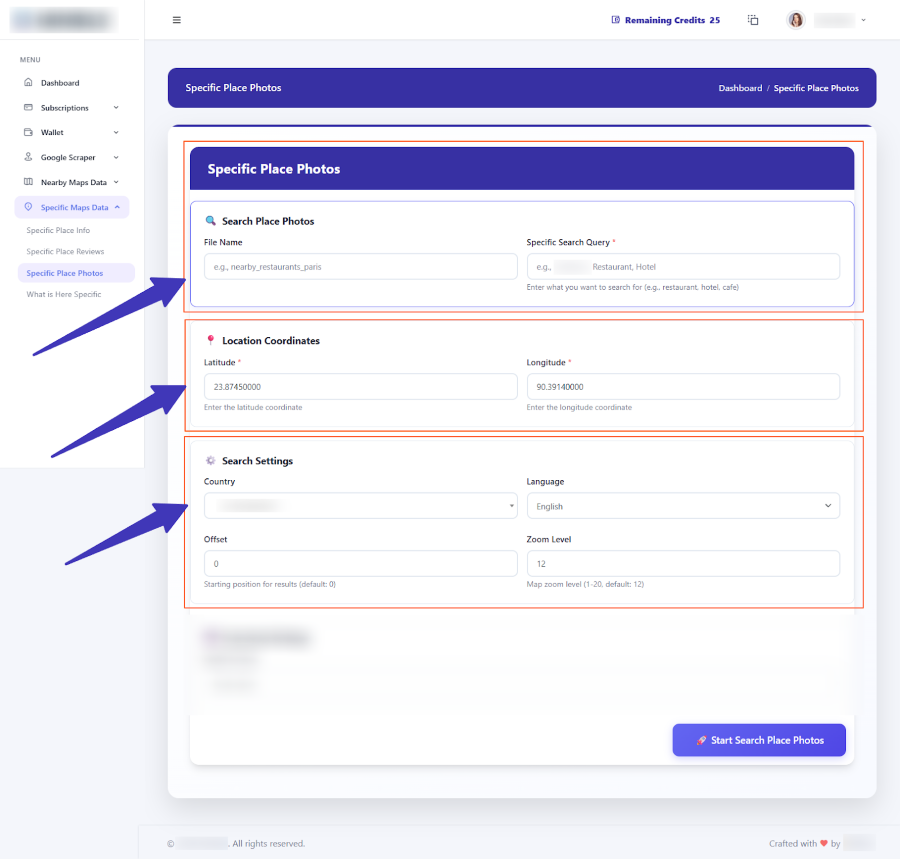
After putting in all the info, the tool shows a summary of photo data that will be returned.
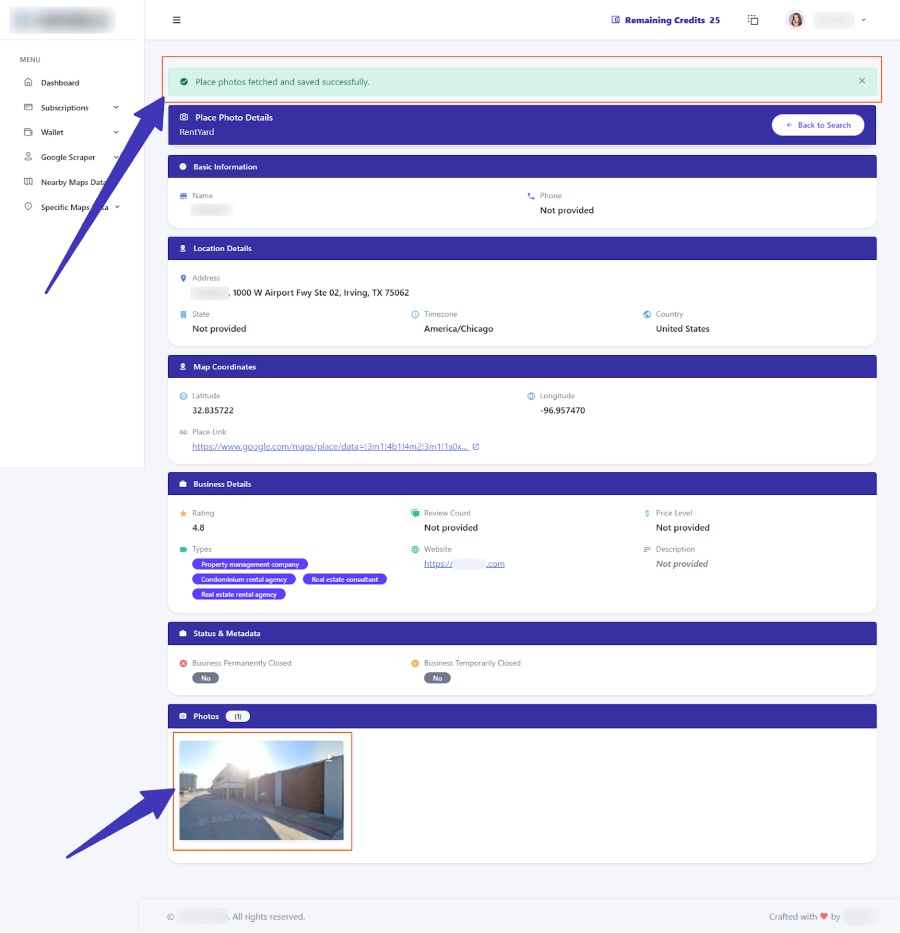
When you click the button to fetch photos, you get a result similar to the image gallery that appears on the business page you searched for.
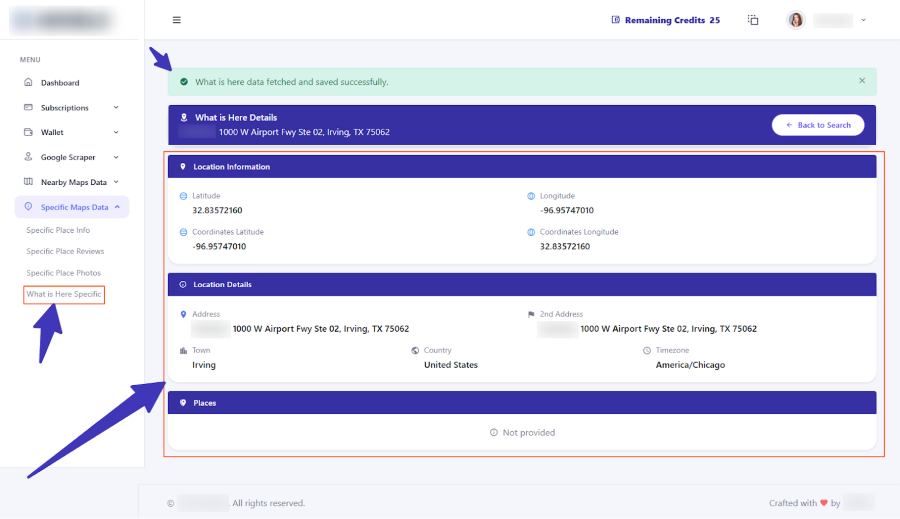
Specific What is Here
Specific What is Here gives you detailed information about what is located at a chosen point on the map. That can include business details if a listing exists for that location.
To use it, fill out all fields in the form based on the coordinates or area you want to check.
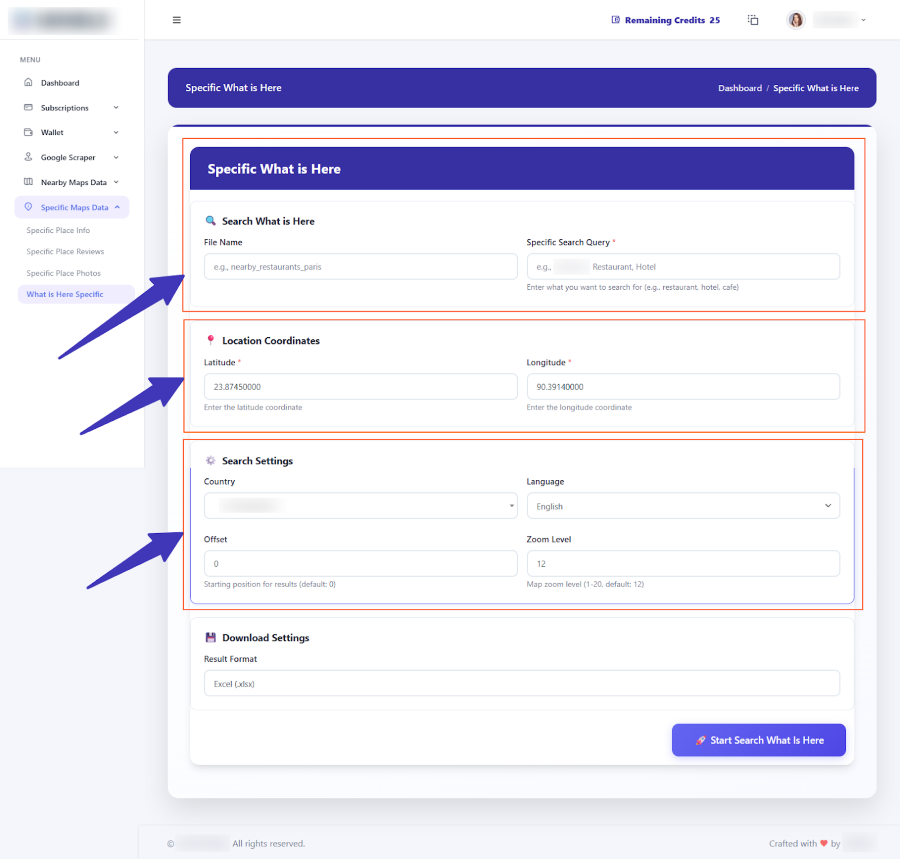
After entering all info, you see a summary of the specific information the tool is about to retrieve for that point or business.
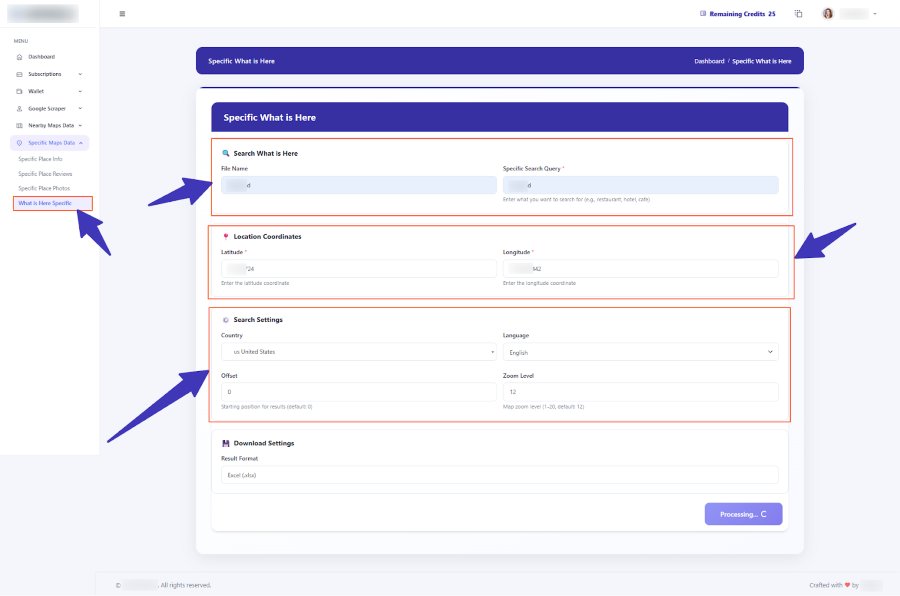
When you click the button to run the job, the result shows a view similar to the business page or map information for that location.
API documentation for G Map Extractor
Overview
The G Map Extractor API lets you automate Google Maps scraping from your own apps, internal tools, and workflows. Use it to trigger extractions, check job status, and download structured data without logging into the dashboard every time.
This section gives you a high-level overview of authentication, base URL, example requests, and common response formats. Update endpoint URLs and parameters here to match your live API implementation.
Authentication
All API requests must be authenticated with an API key. You can generate and manage keys from your account inside the G Map Extractor app (for example under an API Keys or Developer section).
- Keep your API key secret and never share it publicly.
- Send the key using an
Authorizationheader. - Use separate keys for production and testing if possible.
Authorization: Bearer YOUR_API_KEY_HEREIf you think your API key is exposed or compromised, revoke it from the dashboard and generate a new one.
Base URL
All endpoints are organized under a single base URL. Replace this with your live API domain if it is different.
Base URL:
https://api.gmapextractor.io/
In most cases you will send HTTPS requests to routes that start with
/v1/ or another version prefix.
Example: start a Google MAP scraping job
This example shows how to start a standard Google Maps business search via the API. The API runs the
extraction in the background and returns a job_id that you can use to track progress.
POST /v1/maps/searchRequest body example (JSON):
{
  "query": "dentists in Chicago",
  "location": "Chicago, IL, USA",
  "radius_km": 10,
  "country_code": "US",
  "language": "en",
  "max_results": 250
}
cURL example:
curl -X POST "https://api.gmapextractor.io/v1/maps/search" \
  -H "Authorization: Bearer YOUR_API_KEY_HERE" \
  -H "Content-Type: application/json" \
  -d '{
    "query": "dentists in Chicago",
    "location": "Chicago, IL, USA",
    "radius_km": 10,
    "country_code": "US",
    "language": "en",
    "max_results": 250
  }'
Typical response (simplified):
{
  "job_id": "job_123456789",
  "status": "queued",
  "estimated_rows": 240,
  "credits_used": 240
}
The exact fields in the response depend on your final API design. Adjust this example to match your production schema.
Check job status
After starting a job, use the job_id to check its current status. When the job is complete
you can fetch the results or download the file.
GET /v1/jobs/{job_id}Example:
curl "https://api.gmapextractor.io/v1/jobs/job_123456789" \
  -H "Authorization: Bearer YOUR_API_KEY_HERE"
Sample response:
{
  "job_id": "job_123456789",
  "type": "maps_search",
  "status": "completed",
  "created_at": "2025-01-06T10:30:00Z",
  "finished_at": "2025-01-06T10:31:12Z",
  "total_rows": 247,
  "download_url": "https://api.gmapextractor.io/v1/jobs/job_123456789/download"
}
Download results
When a job shows status: completed, you can download the data directly using a download
link or a dedicated download endpoint. The file format is usually XLSX or CSV depending on your settings.
GET /v1/jobs/{job_id}/downloadExample:
curl -L "https://api.gmapextractor.io/v1/jobs/job_123456789/download" \
  -H "Authorization: Bearer YOUR_API_KEY_HERE" \
  -o "dentists-chicago.xlsx"
The downloaded file can be opened in Excel, Google Sheets, or imported into CRMs and other platforms just like files you download from the dashboard.
Error handling
When something goes wrong, the API returns an HTTP error code together with a JSON response that explains what happened. Handle these cases in your integration so you can retry or fix the request.
Common error patterns:
| Status code | Meaning |
|---|---|
| 400 | Missing or invalid parameters. Check the request body and required fields. |
| 401 | Authentication failed. The API key is missing, invalid, or revoked. |
| 403 | You do not have permission to access this resource or feature. |
| 404 | Job or resource not found. Verify the job_id or endpoint path. |
| 429 | Too many requests. You hit a rate limit, wait and retry later. |
| 500 | Server error. Try again in a few moments or contact support if it repeats. |
Example error response:
{
  "error": {
    "code": 400,
    "type": "invalid_request",
    "message": "The 'query' field is required."
  }
}
Best practices
- Use test queries first to confirm your integration before running large extractions.
- Respect rate limits and avoid sending many jobs in tight loops.
- Log
job_idvalues so you can re-check or re-download data later. - Rotate and protect API keys, especially in team environments.
- Align your usage with Google’s terms and local regulations in your region.
Always keep live API keys outside of public code repositories. Use environment variables or secure secrets management instead.
Scraped files, history, and downloads
Google MAP Scraping files list
Every time you run a Google MAP Scraping job, the result is stored in a scraped files list. This history makes it easy to revisit old jobs and download data again without rerunning the scrape.
- Open the Scraped Files or history section inside the Google MAP Scraping area.
- See the list of completed jobs with their names and dates.
- Click download to get the file again when you need it.

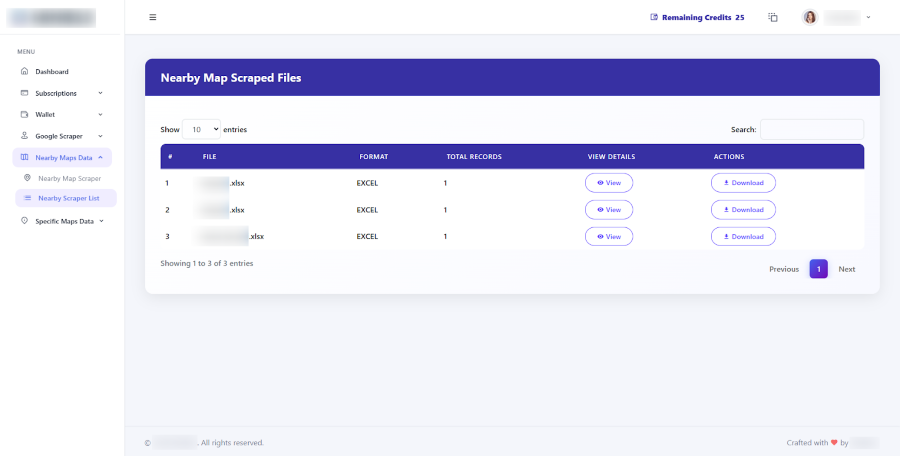
Nearby Map scraped files history
Nearby Map Scraper also keeps its own history of scraped files. This is useful when you run different radius or location tests and want to compare results later.
- Open the Nearby scraper section and go to its Scraped Files or history tab.
- Review the list of past Nearby jobs and their statuses.
- Download the XLSX files directly from this history without running the same search again.
Download formats
Most tools let you download results in XLSX format so you can open them in Excel or any spreadsheet software. This format is ideal for sorting, filtering, and importing into CRMs or other tools.
- Click the download button next to a completed job.
- Save the XLSX file to your computer.
- Open it in your preferred app to continue working with the data.
If you do not see a file, make sure the job has finished and the status shows as completed before trying to download again.
Frequently asked questions
Quick answers to common questions about G Map Extractor
To create an account go to the sign up page at https://app.gmapextractor.io/register and complete the form or sign up with Gmail. After email verification you can log in at https://app.gmapextractor.io/login with your email and password or Gmail.
Most errors happen when required fields are not filled. In sections like Google MAP Scraping or Specific Place tools you must complete every required input. If something is missing you will see an error message until you correct the form and submit again.
Your available credits are shown inside the wallet section. There you can see how many credits are attached to your active packages and how much you still have left for future scraping jobs.
Google MAP Scraping is used for broader searches like a category in a city, for example hotels in Dhaka. Nearby Map Scraper works around a specific point or address and focuses on businesses within a chosen radius of that location.
Results are usually available in XLSX format so you can open them in Excel or other spreadsheet tools. Some sections may offer additional formats in the future but XLSX is the main format for most scraping jobs.
Each tool has a Scraped Files or history section. For example Google MAP Scraping and Nearby Map Scraper both show lists of previous jobs, so you can download the results again without repeating the scrape.
Yes. Use Specific Place Review to collect reviews and Specific Place Photos to collect photos for one business. Just fill all required fields in those tools and run the job to get a summary and final result.
Open the subscription page from your account or dashboard menu. There you can see your current package, review other available options, and decide if you want to change your plan for more or fewer credits.
If any tool behaves differently than shown here, take a screenshot and contact the support team from the contact or support page on gmapextractor.io. Include your account email and a short description so they can respond faster.
Ready to Start Your Next Google Maps Extraction?
Log in to G Map Extractor and turn everything you’ve learned here into real, usable business data.
Open Dashboard Contact Us